Manage & Resume Sessions
Track activity and resume previous conversations.
| Command | Description |
|---|---|
/stats | View current session stats |
/resume | Browse and resume previous sessions |
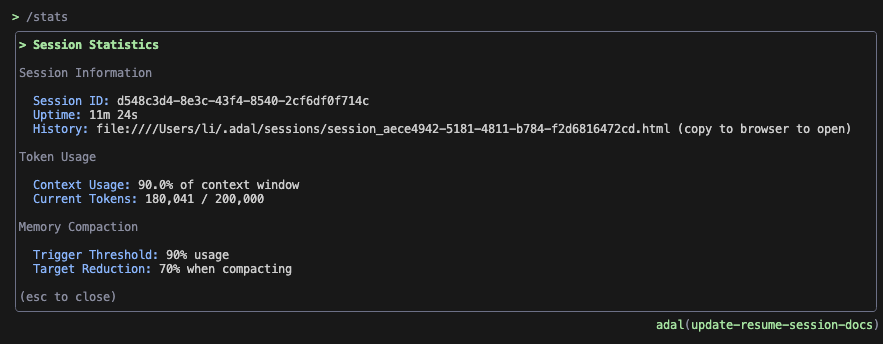
View Session Stats
/stats
Shows current session information:
- Session ID and uptime
- Token usage: context percentage, current/max tokens
- Memory compaction: trigger threshold, target reduction
- History path: Link to full HTML conversation log
Resume Previous Sessions
/resume
Select any previous session and continue where you left off.
> Resume Session
Use ↑↓ arrows to navigate, enter to resume, esc to cancel.

1. ● Implement billing dashboard (current)
   add the credits chart · 2 hours ago · 15 messages · 8a36

2. ○ Fix authentication bug
   token refresh returns 401 · 1 day ago · 8 messages · c7f1
Each session shows:
- A short generated title on the first line
- Your last message, time ago, message count and the start of the session ID on the second line
- Current indicator
A chat written by a scheduled task shows a clock (◷) as its marker instead of ●/○, so you can tell it apart from a chat you started yourself. It keeps the clock after you resume it by hand, and after the task is deleted.
Titles are written in the background by a small model after you sign in, and stored with the session. A session that has no title yet — just created, or the title model is unavailable — shows your last message on the first line instead.
Controls: ↑/↓ navigate, Enter load, ESC cancel
After resuming, see session stats and a link to full HTML history:
✓ Session resumed · 10 messages loaded
Full history: file:///path/to/session_x.html (copy to browser to open)
─────────────────────────────────────────────────────────────────────
One AdaL per chat
A chat can only be open in one place at a time. Whichever AdaL opened it holds it, and anything else that asks for the same chat is refused with a line naming the holder:
This chat is open in an AdaL CLI. Close it there to continue it here.
The same applies to Desktop windows, an adal -q run, an SDK session and a scheduled task — for a run, the line says to try again when it finishes. The reason is the transcript: each AdaL reads it once and then appends to it, so two of them answer without each other's turns.
The holder keeps a file next to the transcript, ~/.adal/sessions/conversation_<id>.lock, and removes it when it exits. If it crashed, the next AdaL that opens the chat clears the stale file and continues.
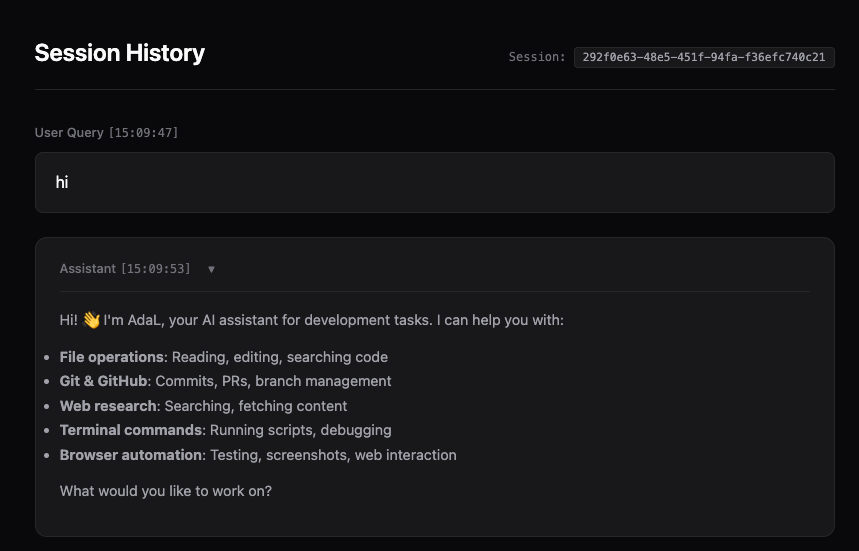
View Full History in Browser
Your terminal shows the last 10 messages to stay fast. To see everything, copy the file path and paste it into your browser for a beautifully formatted HTML view.
Benefits:
- Complete history - See every message, tool call, and response
- Syntax highlighting - Code blocks with proper formatting
- Searchable - Find commands instantly with Cmd+F (macOS) or Ctrl+F (Windows/Linux)
- Shareable - Save or share the HTML file
Perfect for reviewing long sessions or documenting your workflow.
What Gets Saved
- Full conversation (messages, tool calls, responses)
- Working context (files referenced, commands run)
- Session metadata (timestamps, message count)
Related: Slash Commands · Keyboard Shortcuts